
Set up tickets
You make a ticket type (like “Support”), then post its panel: a message with a button. Members press the button and get a private ticket.
Make your first ticket type
-
Open Tickets
In the dashboard, click Tickets in the sidebar (under Support), then New type.
-
Name it and pick a channel
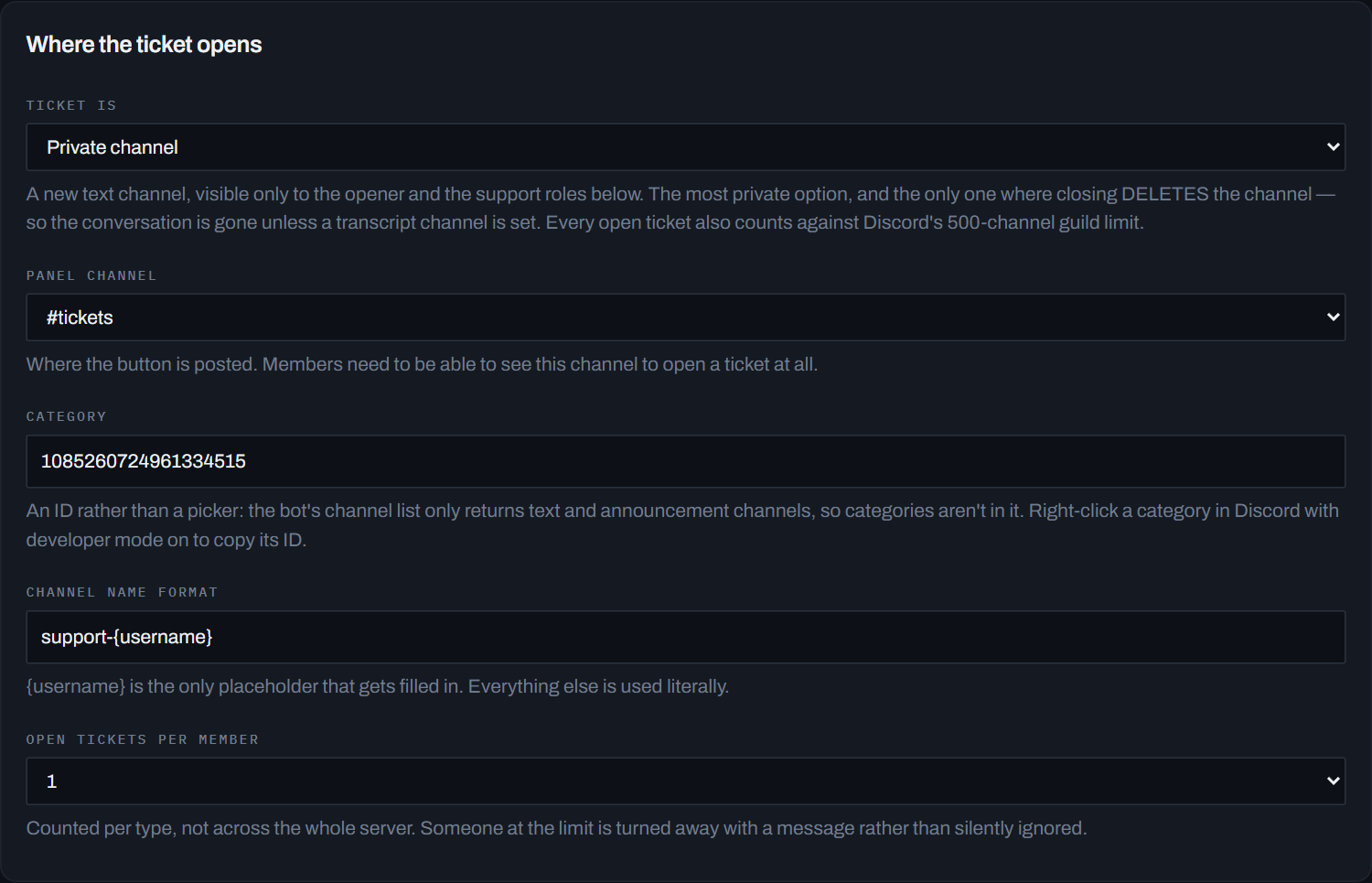
Name: what this ticket is for, like Support. It’s the title of the panel and of every ticket.
Panel channel: the channel where the button will be posted, like #support.
-
Choose what a ticket is
Ticket is: Private channel (a new channel only the member and your staff can see), Private thread, or Public thread. Not sure? Pick Private channel.
-
Choose who answers
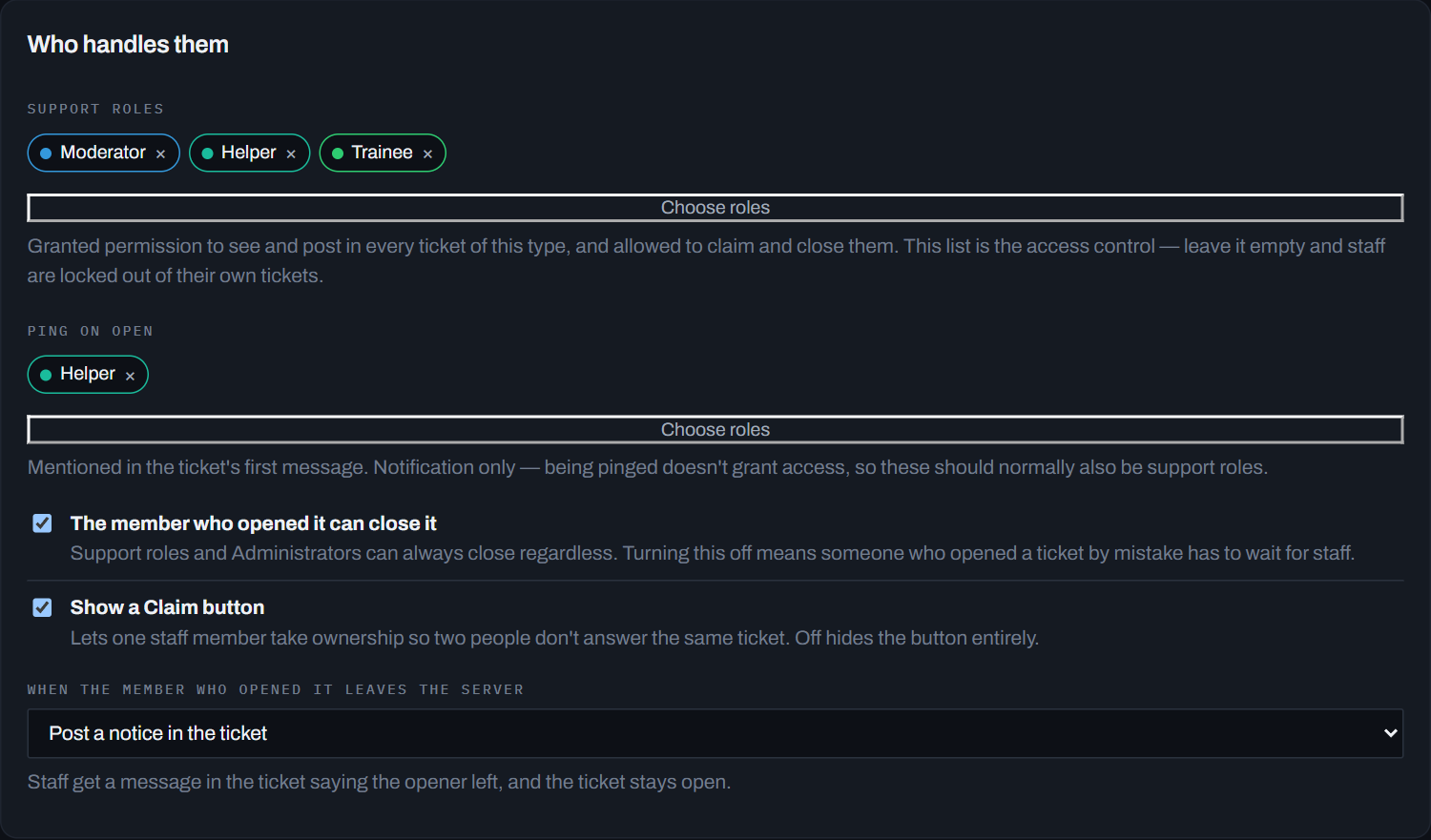
Support roles: your staff roles. Only these roles (and the member) can see the ticket. If you leave it empty, only Administrators can.
Ping on open (optional): roles that get pinged when a ticket opens.
-
Pick a transcript channel
Save a transcript when a ticket closes is on by default, so pick a Transcript channel (a staff-only channel). That’s where the saved conversation goes when a ticket closes.
-
Press Create
If something’s missing, the dashboard says what. A yellow box warns about settings that would cause trouble, like staff who can’t see the tickets.
-
Post the panel
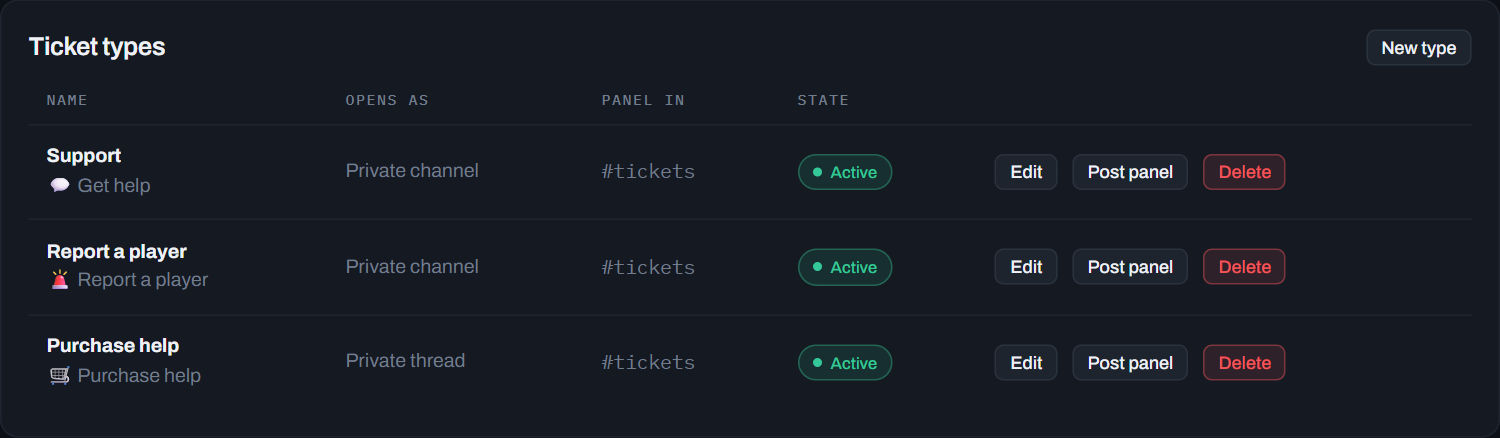
In the list, press Post panel next to your ticket type, then Post it. The message with the button appears in the panel channel. Done!
Add more ticket categories
Want “Support”, “Report a player” and “Partnership”? Make one ticket type for each: press New type again, fill it in, press Create, then Post panel.
Put ticket channels in a category
With Private channel, new tickets go in the Category you choose (otherwise they appear at the top of your channel list). The box wants the category’s ID:
- In Discord, open User Settings → Advanced and turn on Developer Mode.
- Right-click the category in your channel list and pick the Copy … ID option at the bottom of the menu.
- Paste it into Category and press Save.
Change something later
Press Edit next to the ticket type, change it, and press Save. Panels you already posted keep working. To stop new tickets without deleting anything, untick Active.
The quick way, from Discord
In the channel where the button should go, run:
/ticket-panel create name: Support channel_type: Private channel support_role: @StaffIt posts the panel right away. Then pick a transcript channel for it in the dashboard, under Tickets → Edit.
Stuck on a step? Ask in the support server, or see all guides.